Other Utilities and Services
Couchbase Capella provides several tools to view and manage your data.
-
Step 1: Document Viewer
-
Step 2: Sample Indexes
-
Step 3: Full-Text Search
Document Viewer
Another simple and fast way to find and look at documents is by selecting .
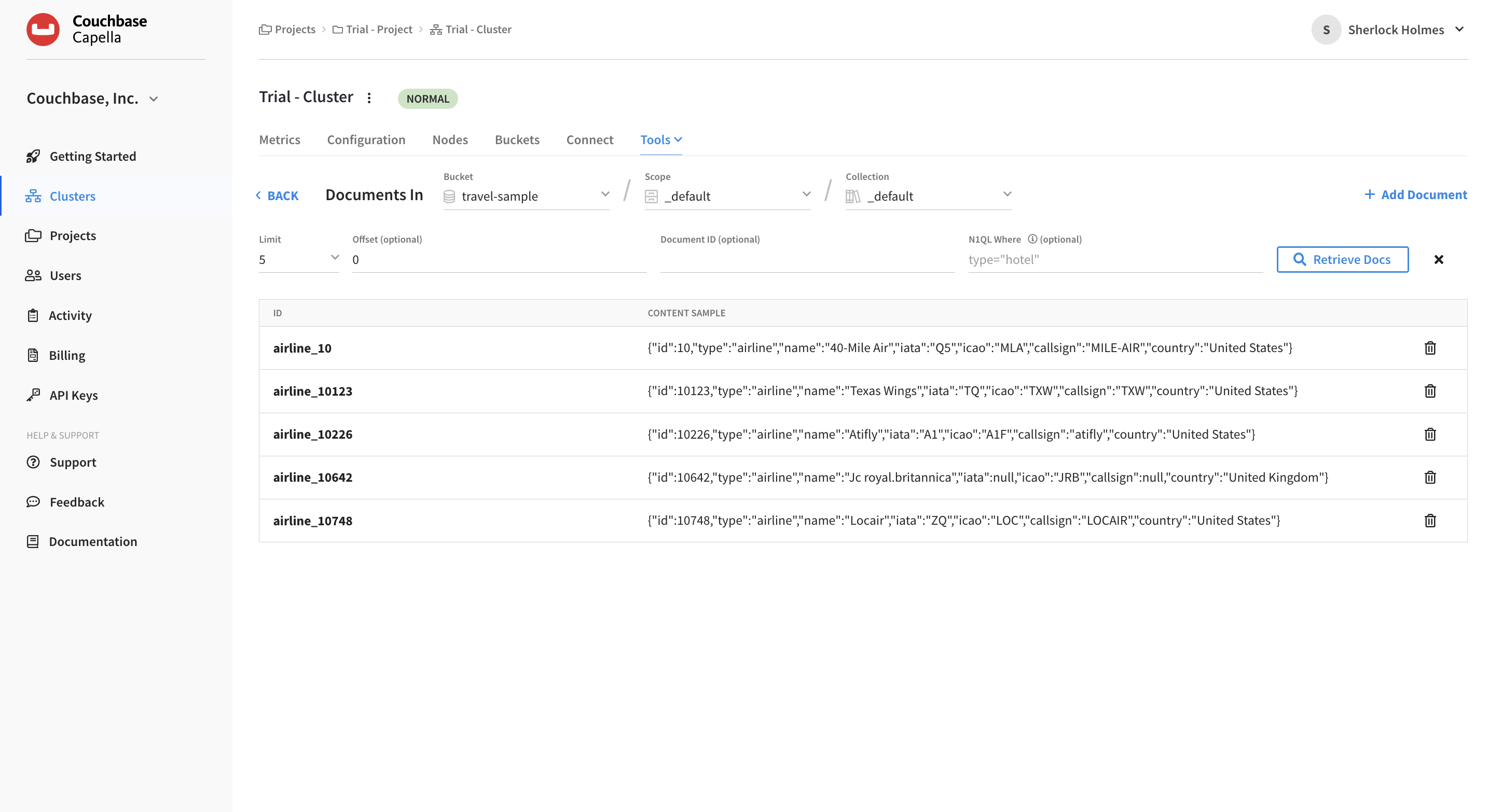
Here are a few things you can do with the document viewer:
- Change your buckets, scopes, and collections to see documents segmented in those ways
-
-
Set bucket to
travel-sample, scope toinventory, and collection tohotel.The documents list will automatically refresh to show only those documents within the selected collection.
-
- View document information and content
-
-
Click on a document name in the ID column
This opens the Document flyout where you can view and edit the contents of documents directly. At the top, it shows you the document hierarchy.
-
Click the "X" to close the flyout.
-
- Change default list limit
-
-
Use the Limit drop-down menu to change the default document list limit from 5 to 20.
The documents list will automatically refresh to show more documents.
-
- Change the offset to skip the first X documents
-
-
Inside the Offset field enter
20.The documents list will automatically update to reflect the new offset.
-
- Search documents by Document ID
-
-
In the Document ID field, paste
hotel_21725. -
Press Enter or click Retrieve Docs.
This will pull up a hotel in Paris near the Louvre Metro.
-
Clear the previous settings by clicking the Clear (X) button.
-
- Use N1QL Where
-
-
In the N1QL Where field, paste the following:
city='Half Moon Bay'This will bring up the hotel located in this California town.
-
|
See Also
For more information about the document editor and working with documents in the Capella UI, see Manage Documents.
|
Sample Indexes
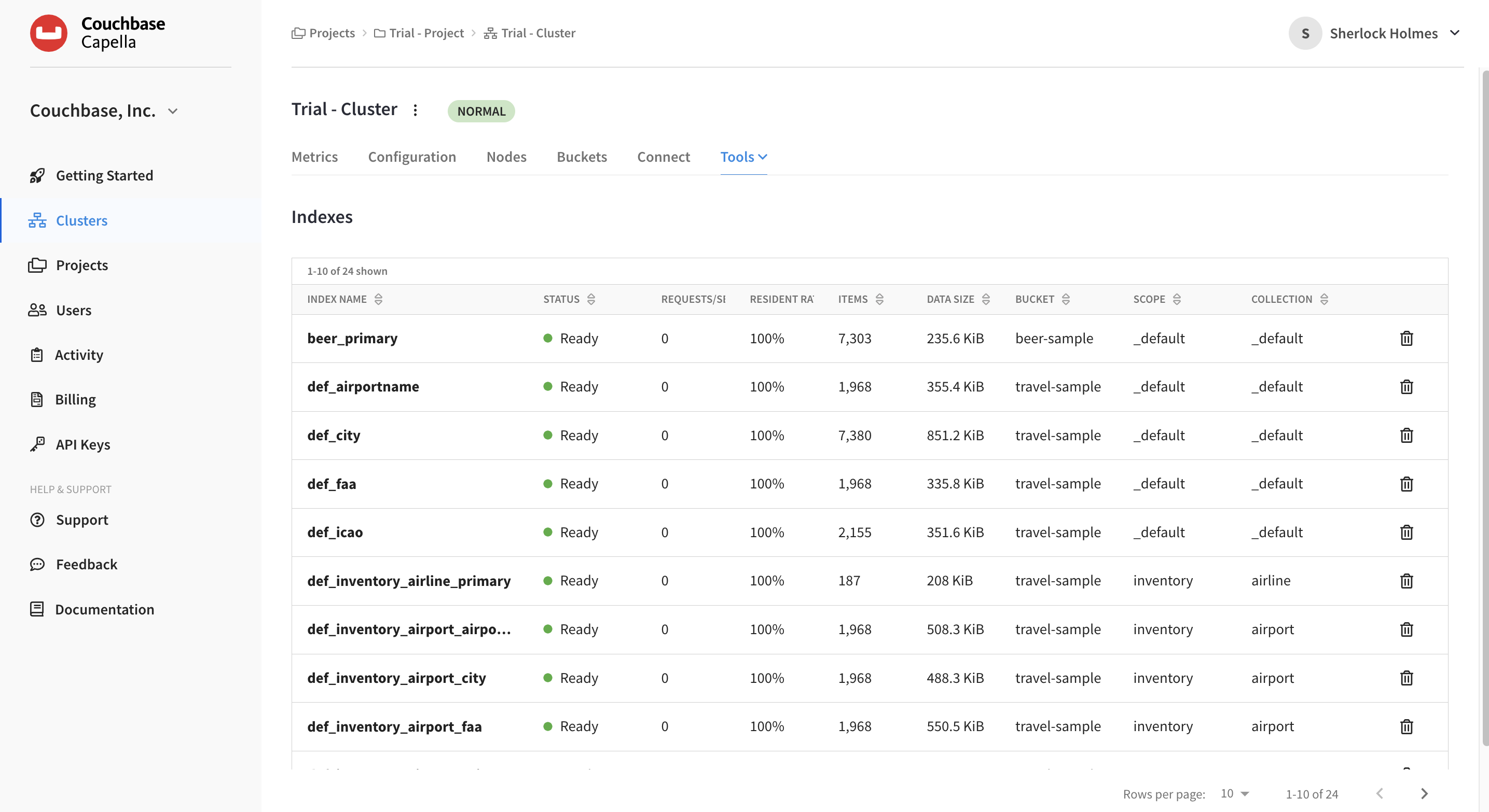
Now let’s look at the cluster indexes. Click .
In Couchbase, primary and global secondary indexes — also known as just indexes — are predefined subsets of bucket data created by the Index Service.
The sample buckets automatically created indexes upon import.
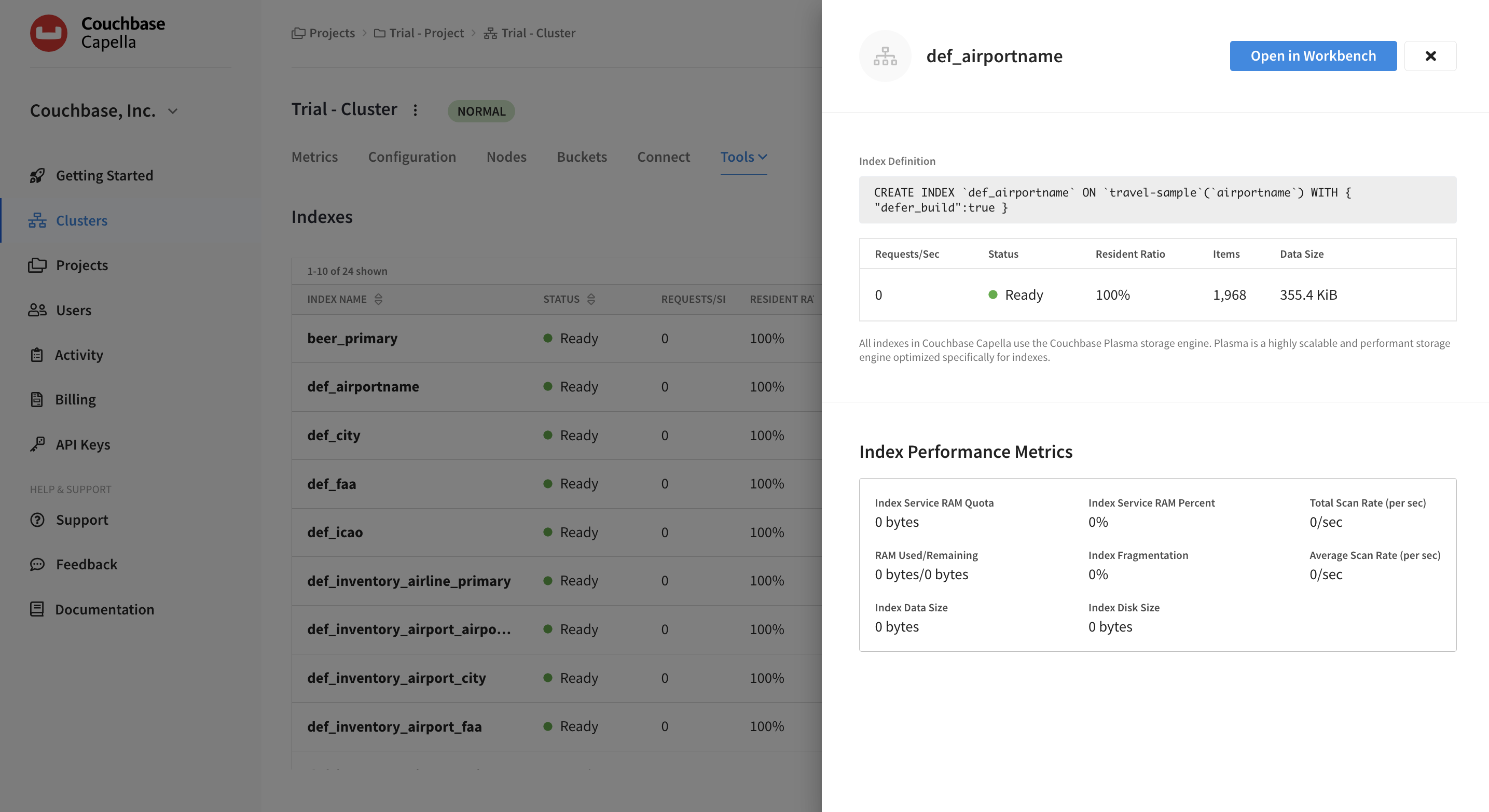
If you select an index, it will open a flyout with more details about that index. Here you can see the number of items covered by that index and how it is performing.
|
See Also
For more information about viewing and interacting with indexes, see Index Service.
|
Full-Text Search
Couchbase Capella Full-Text Search (FTS) lets you create, manage, and query specially purposed indexes defined on JSON documents within a Couchbase bucket.
The Full-Text Search editor is available under each cluster’s tab. To search, we must first create an index.
-
Click Add Index.
The Add Index flyout appears.
-
Type the name
hotel-description, choose the "travel-sample" bucket and leave the Use default scope/collection(s) check box checked. -
Click Continue to configuration.
-
In the Index Settings section, click Add Mapping.
-
In the Name field, type
hotel, and click Create Mapping. -
For your newly created type mapping, click the ellipsis () for a submenu, and click Insert Child Field.
-
In the Child Field, type
description, and tick all the boxes at the bottom. -
Now click Create Child Field.
-
For the last step of the add index process, scroll to the bottom and click Create Index.
Your new index should now appear.
-
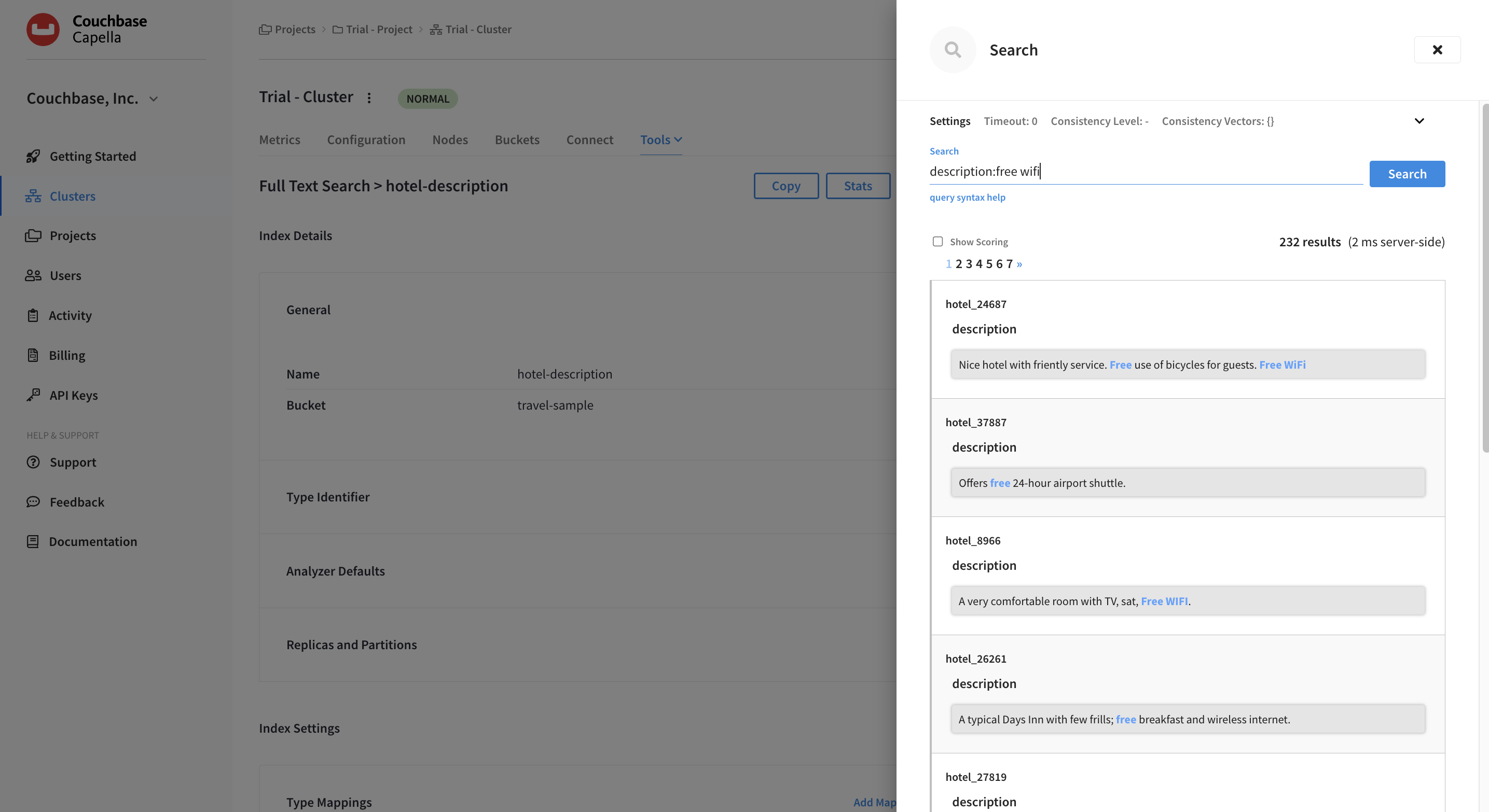
Click on the name of your new index and press the Search button.
A Search flyout appears.
-
Now on the search bar, enter
description:free wifi, then click the Search button.All hotel documents with matching terms are listed with the execution time also displayed. Try experimenting with other search terms.
-
Click the "X" in the upper right to close the Search flyout screen.
|
See Also
To learn more about full-text search, see Introduction to Full-Text Search.
|