Type Mappings
Whereas a type identifier tells the index how to determine the position in each document of the characters that specify the document’s type, a type mapping specifies the characters themselves.
If Doc ID up to separator is used as a type identifier, and the underscore is specified as the separator-character, a type mapping of hotel ensures that hotel_10123, rather than airline_10, is indexed.
When the Add Index, Edit Index, or Clone Index screen is accessed, the Type Mappings panel can be opened.
The default setting is displayed:

Left-click on the + Add Type Mapping button. The display now appears as follows:
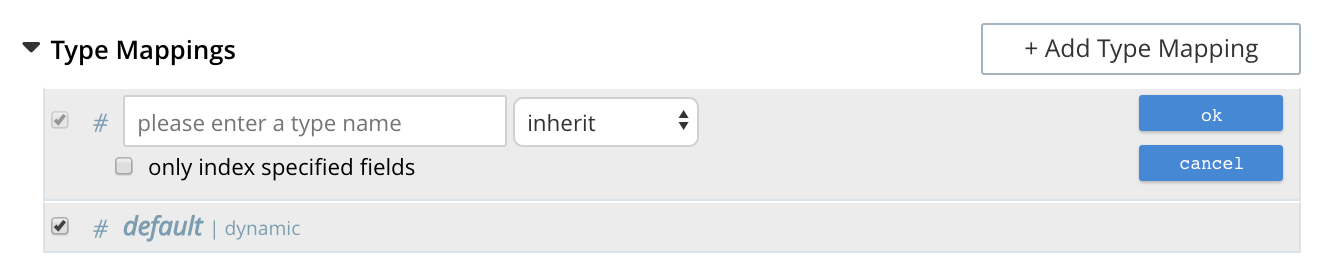
The display indicates that a single type mapping is currently defined, which is default.
This is a special type mapping created by every index automatically: it is applied to each document whose type either does not match a user-specified type mapping, or has no recognized type attribute. Therefore, if the default mapping is left enabled, all documents are included in the index, regardless of whether the user actively specifies type mappings.
To ensure that only documents corresponding to the user’s specified type mappings are included in the index, the default type mapping must be disabled (see below for an example).
Each type mapping is listed as either dynamic, meaning that all fields are considered available for indexing, or only index specified fields, meaning that only fields specified by the user are indexed.
Therefore, specifying the default index with dynamic mapping creates a large index whose response times may be relatively slow; and is, as such, an option potentially unsuitable for the most production deployments.
For information on how values are data-typed when dynamic mapping is specified, see the section below, Document Fields and Data Types.
To specify a type mapping, type an appropriate string (for example, hotel) into the interactive text field.
Note the only index specified fields checkbox: if this is checked, only user-specified fields from the document are included in the index.
(For an example, see Specifying Fields, below.)
Optionally, an analyzer can be specified for the type mapping: for all queries that do indeed support the use of an analyzer, the specified analyzer will be applied, rather than the default analyzer (which is itself specified in the Advanced pane, as described below, in Specifying Advanced Settings). A list of available analyzers can be accessed and selected from, by means of the pull-down menu to the right of the interactive text-field:
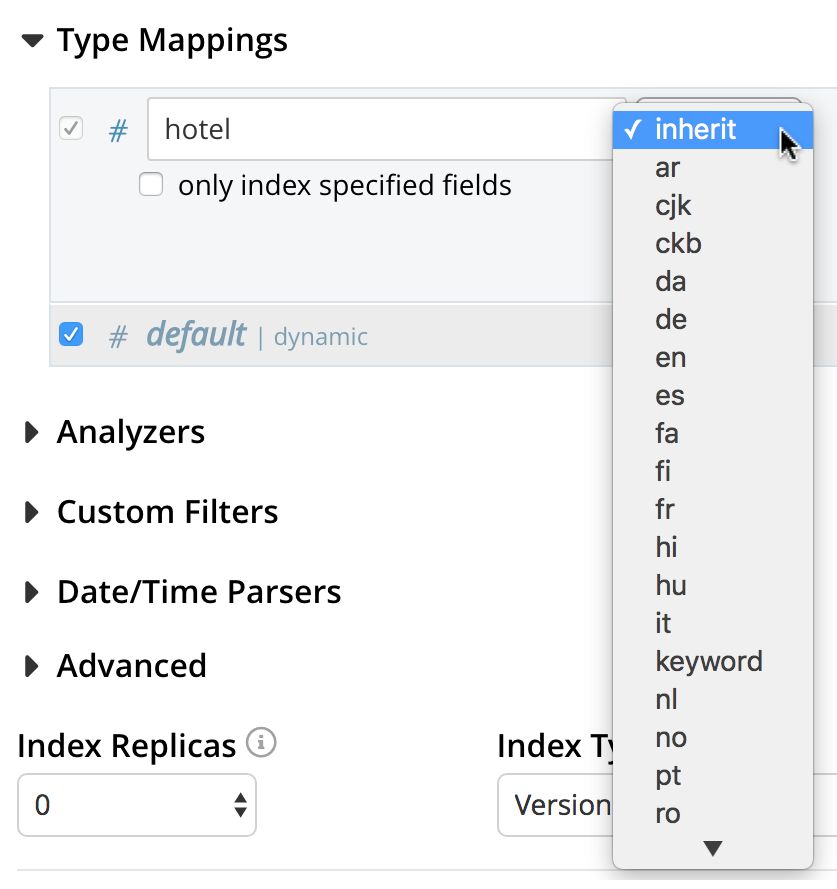
The default value, inherit, means that the type mapping inherits the default analyzer.
Note that custom analyzers can be created and stored for the index that is being defined using the Analyzers panel, described below in Creating Analyzers.
On creation, all custom analyzers are available for association with a type mapping, and so appear in the pull-down menu shown above.
Additional information on analyzers can also be found on the page Understanding Analyzers.
The Type Mappings panel now appears as follows:

Note that the checkbox to the left of each of the two specified type mappings, hotel and default, is checked.
Because default is checked, all documents in the bucket (not merely those that correspond to the hotel type mapping) will be included in the index.
To ensure that only hotel documents are included, uncheck the checkbox for default.
The panel now appears as follows:

Note also that should you wish to ensure that all documents in the bucket are included in the index except those that correspond to the hotel type mapping, uncheck the checkbox for hotel, and check the default checkbox:

Specifying Type Mapping for Collection
Type Mapping will allow you to search for documents from the selected scope, selected collections from the scope, and for a specific document type from the selected scope and collections.
-
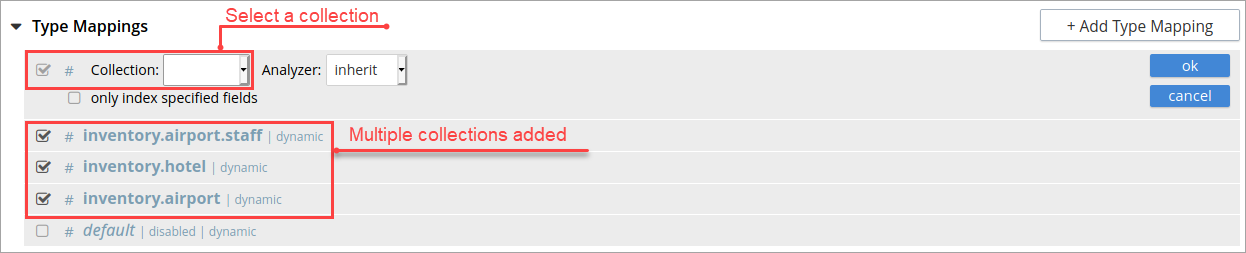
Left click on the +Add Type Mapping button. The display now appears as follows:

In the Type Mappings, you can add mapping of a single collection or multiple collections. To specify the collection, click the Collection drop-down list and select the required collection.
The Collection field displays the selected collection along with the selected scope. For example, inventory.airport or inventory.hotel.
-
Click ok to add the collection to the index. Continue the same process to add other collections to the index.
| In Type Mappings, you can add multiple collections to the index. However, you can either select only one collection to create a single collection index or select multiple collections to create an index with multiple collections. The Type Mappings panel appears as follows: |
Type Mapping with Single Collection
With a single collection index, you can search documents only from a single collection specified in the Type Mappings.

Type Mapping with Multiple Collections
With multiple collections index, you can search documents across multiple collections (within a single scope) specified in the Type Mappings.
Type Mapping with Specific Document Type
With a specific document type, you can search documents of a specific type from a single collection or multiple collections. Every document in Couchbase includes the type field that represents the type of the document. For example, the type “airport” represents the documents related to airport information.
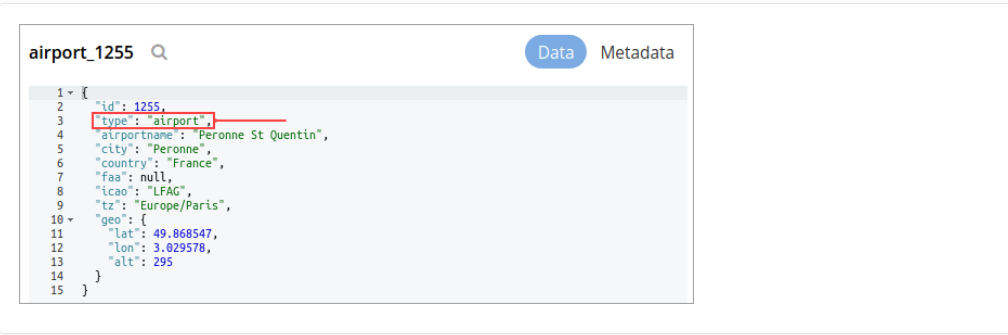
If you want to search for a specific document type from a single collection or multiple collections, you can manually specify the document type after the collection in the Collection field. For example, inventory.airline.airport or inventory.route.airport.
Now, when you search for the airport document type, the index will display all documents from a single collection or multiple collections where the type field is the airport.
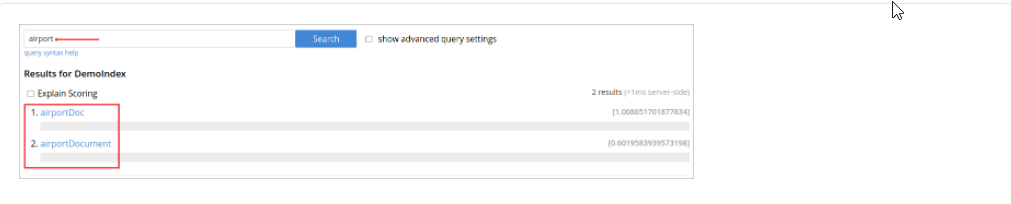
You can click the document link and verify the document type.
Document Type with single collection
Every document in Couchbase includes the type field that represents the type of the document. For example, type “airport” represents the documents related to airport information.
If you want to search for a specific document type from a single collection, you can manually specify the document type after the collection in the Collection field.
For example, inventory.airline.airport or inventory.route.airport

Now, when you search for the airport document type, the index will display all documents from a single collection where the type field is airport.
Document Type with multiple collections
Every document in Couchbase includes the type field that represents the type of the document. For example, type “airport” represents the documents related to airport information.
If you want to search for a specific document type from the multiple collections, you can manually specify the document type after the collection in the Collection field.
For example, inventory.airline.airport or inventory.route.airport

Now, when you search for the airport document type, the index will display all documents from the multiple collections where the type field is airport.
Document-Fields and Data-Types
During index creation, for each document-field for which the data-type has not been explicitly specified (which is to say, text, number, datetime, boolean, disabled, or geopoint), the field-value is examined, and the best-possible determination made, as follows:
| Type of JSON value | Indexed as... |
|---|---|
Boolean |
Boolean |
Number |
Number |
String containing a date |
Date |
String (not containing a date) |
String |
| The indexer attempts to parse String date-values as dates, and indexes them as such if the operation succeeds. However, on query-execution, Full Text Search expects dates to be in the format specified by RFC-3339, which is a specific profile of ISO-8601. |
The String values such as 7 or true remains as Strings and did not index as numbers or Booleans respectively.
The number-type is modeled as a 64-bit floating-point value internally.
Excluding child field/ child mapping from a dynamic FTS index
If you want to index everything except a child field or a child mapping, you add that child mapping and child field and turn off the child mapping and the Index option, respectively.
Perform the following steps:
-
In the index, add a type mapping and set it to dynamic.
-
In the type mapping, add a child field.
-
For the fields, uncheck the Index option from its settings.
-
For the mapping, uncheck the corresponding dynamic type mapping check box to disable it.